

Page Overview
Ticket List Table
Filter Conditions
Status Flow
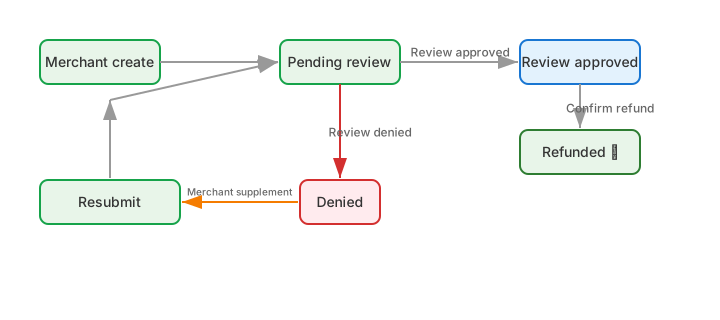
Operation Guide
Create Ticket (Admin Role)
1
Click 'Create Ticket'
Click the “Create Ticket” button at the top right of the page.
2
Enter the deposit hash
Enter the transaction hash of the misdeposit and click the “Query” button. The system will automatically retrieve the transaction info from the chain and populate the fields.
3
Confirm transaction info
Review the auto-filled chain, token, amount, and sender/receiver addresses. If the transaction does not belong to the current project, the system will indicate a project mismatch.
4
Fill in the refund address
Enter the target refund address.
5
Submit the ticket
Add remarks (optional) and click OK to submit.
Review Ticket (Super Admin)
1
Find a pending ticket
Find a ticket with the status “Pending Review” in the list.
2
Click the 'Review' button
View the ticket details, including the deposit amount and token.
3
Fill in the fee
Enter the refund fee. The system will automatically calculate the actual refund amount (deposit amount - fee).
4
Select review result
- Click “Approve”: the ticket enters the approved state
- Click “Reject”: the ticket enters the rejected state; you can fill in the rejection reason
Confirm Refund (Super Admin)
After approval, the refund operation needs to be executed on-chain:1
Find an approved ticket
Find a ticket with the status “Approved” in the list.
2
Click the 'Confirm Refund' button
Enter the on-chain hash of the refund transaction.
3
Submit
Click OK; the ticket status changes to “Completed”.
Resubmit (Admin Role)
For a rejected ticket, the merchant can view the rejection reason and resubmit:1
Click 'Resubmit' on the rejected ticket
Or go to the ticket detail page and find the resubmit form at the bottom.
2
Modify the refund address and remarks
Modify the relevant information based on the rejection reason.
3
Submit
After resubmitting, the ticket returns to the “Pending Review” status.
Ticket Detail Page
Click the ticket ID to enter the detail page, which includes:- Basic Info: ticket ID, type, project, status, chain, token, amount, fee, deposit hash, source address, receive address, refund address, time
- Fee Details: deposit amount, fee, refund amount
- Refund Transaction: on-chain hash of the refund
- Operation Log: a timeline showing all operation history (create, review, reject, etc.)
- Resubmit Form: shown only for tickets in the rejected status
Permission Requirements
Notes
The operation log on the ticket detail page contains all historical operations. Operator emails are masked (showing first 2 characters + **** + last 2 characters).